Hardware

DualSense Guide 2026: Battery Life, Stick Drift, and Getting the Most From Your Controller

Published June 27, 2026 DualSense · Guide

A practical guide to squeezing more battery out of your DualSense, dealing with stick drift, understanding adaptive triggers, and deciding whether the Edge is worth it.
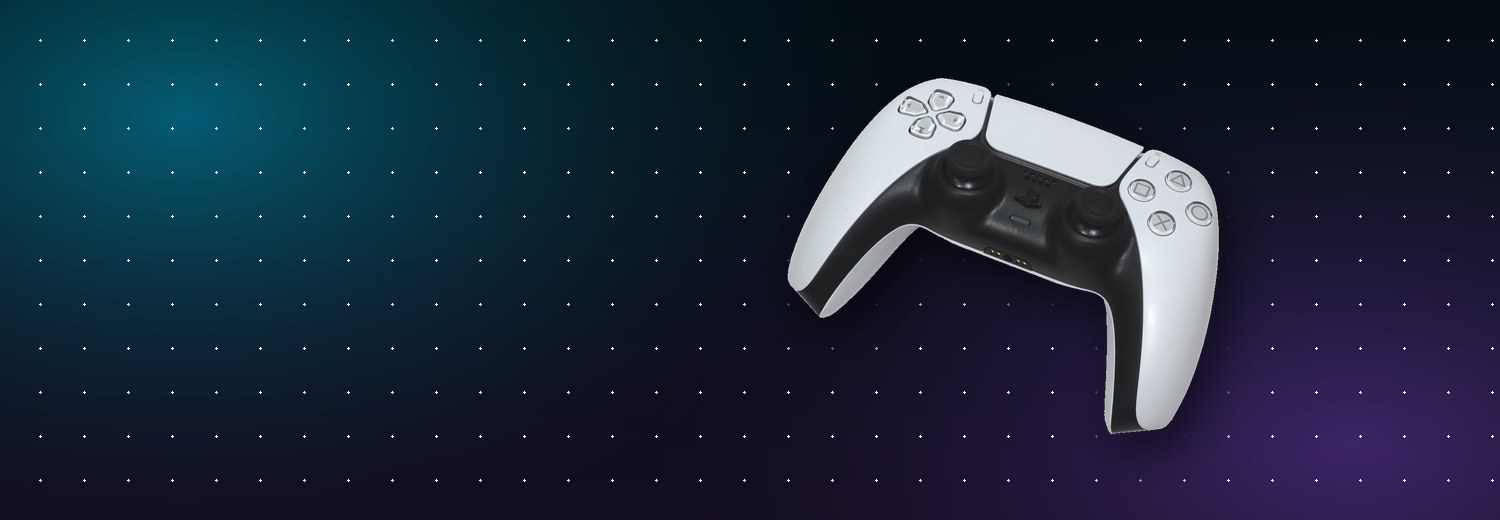
PlayStation 5 DualSense wireless controller

The DualSense is one of the most capable controllers Sony has ever shipped, but much of its behaviour, from how long the battery lasts to what you can do about a drifting stick, only becomes obvious once someone points it out. This guide covers the practical stuff: getting more playtime per charge, keeping the hardware healthy, and understanding what the adaptive triggers and haptics are actually doing. Everything here reflects the real DualSense and DualSense Edge as they exist in 2026.

Realistic battery life and how to stretch it

Sony has never published a fixed battery-life figure for the DualSense, and in practice your mileage varies enormously by game. A title that leans hard on the adaptive triggers, rumble, and a bright light bar will drain the pack noticeably faster than a menu-driven strategy game. As a rough real-world expectation, many players see somewhere between a handful of hours and most of an evening on a full charge, but treat that as an estimate rather than a spec.

The good news is that the biggest battery drains are also the ones you can turn down. In Settings > Accessories > Controllers, you can lower the intensity of the vibration and the trigger effect strength, or switch them off entirely. Dimming the brightness of the controller indicators (the light bar) helps too, and there is little reason to run it at full brightness during normal play.

Also worth setting: the controller power-save timer. Under Settings > System > Power Saving > Set Time Until Controllers Turn Off, you can have an idle controller shut itself down after 10, 30, or 60 minutes rather than sitting there awake. If you tend to pause a game and wander off, this alone recovers a surprising amount of charge over a week.

Quick wins: lower vibration and trigger intensity, dim the light bar, and set an idle shut-off timer. None of these meaningfully hurt the experience in most games, and together they add real minutes to every session.

Charging habits that keep the pack healthy

You can charge a DualSense from the console's USB ports using the supplied USB-C cable, including while the PS5 is in rest mode, which is the simplest approach for most people. To charge in rest mode you may first need to enable USB port power under Settings > System > Power Saving > Features Available in Rest Mode > Supply Power to USB Ports.

If you own two controllers or simply dislike trailing cables, the official DualSense Charging Station lets you dock a pair without going through the console at all. A few habits worth keeping: use a good-quality USB-C cable, avoid leaving the controller to charge somewhere hot such as direct sunlight, and don't panic about topping up before it hits zero. Modern lithium packs are generally happier with regular partial charges than with repeated full drains. You can find charging stations and cables alongside other first-party gear in our PS5 hardware and accessories guide.

Adaptive triggers and haptics, explained

Two features define how a DualSense feels, and it's worth knowing what each one is. The adaptive triggers (L2 and R2) contain small motors that vary the resistance you feel as you pull them. In a shooter that might mean a distinct catch at the point a weapon fires; in a driving game it can simulate the tension of a throttle or the judder of locking brakes. The effect is programmed game by game, so support and intensity differ from title to title.

The haptic feedback replaces the old rumble motors with more precise actuators, so vibration can convey texture and detail rather than a single buzz, from the patter of rain to the difference between walking on gravel and metal. Both systems are part of why first-party games feel distinctive on PS5, and both, as noted above, draw power. Turning them down for battery reasons is entirely reasonable; just know what you're trading away.

On the audio side, the DualSense also has a built-in microphone with a dedicated mute button and a 3.5mm headset jack. If you're building out sound, Sony's PULSE range (the PULSE 3D headset and the newer PULSE Explore earbuds and PULSE Elite headset) is designed around the PS5's Tempest 3D audio, though any wired headset that fits the jack will work fine. Our accessories guide covers headset options in more depth.

Dealing with stick drift

Stick drift, where the camera or character moves on its own without you touching the stick, is the single most common controller complaint, and it isn't unique to the DualSense; analog sticks are a wear component on every modern controller. Before assuming the worst, run through the basics.

  • Recalibrate and rule out software: make sure your controller firmware is current (see below) and that no game-specific dead-zone setting is misconfigured.
  • Clean around the stick: dust and grit under the rubber skirt are common culprits. With the controller off, a puff of compressed air around the base of the stick, plus gentle movement of the stick through its full range, can dislodge debris. Do this carefully and avoid soaking anything in liquid.
  • Check warranty and repair: if drift persists, don't keep fighting it. A controller still under warranty may be eligible for repair or replacement, and Sony offers paid repair options outside that window. Start at PlayStation Support to check the options for your region rather than opening the controller yourself, which typically voids the warranty.

If you find yourself replacing standard controllers repeatedly, the DualSense Edge's swappable stick modules (covered below) are one of its genuine selling points.

Keeping firmware up to date

The DualSense receives firmware updates that can improve stability and fix issues, and the reliable way to apply them is over a wired connection. Plug the controller into the console with the USB-C cable, then go to Settings > Accessories > Controllers > DualSense Wireless Controller Device Software; the system will check for and install any available update.

Sony also offers a Windows utility for updating controller firmware over USB, which is handy if you mainly use the pad on PC. Either way, it takes a couple of minutes and is worth doing before you troubleshoot anything else, since a stale firmware version occasionally explains connection or input quirks.

DualSense Edge vs the standard controller

The DualSense Edge is Sony's premium, customisable controller. It keeps the adaptive triggers and haptics but adds features aimed at players who want more control and longevity: replaceable analog stick modules, swappable stick caps, mappable back buttons, adjustable trigger travel, on-controller profile switching, and a carrying case with a braided cable. It is significantly more expensive than a standard DualSense, and it's heavier in the hand.

FeatureStandard DualSenseDualSense Edge
Adaptive triggers & hapticsYesYes
Replaceable stick modulesNoYes
Back buttonsNoYes
Custom profiles / remappingSystem-level remap onlyOn-controller profiles
PriceLowerNotably higher

Who is it for? If you play competitive shooters, fighting games, or anything where back buttons and fine trigger control matter, or if stick drift has forced you to buy multiple controllers, the Edge's repairable design and customisation can justify the cost. For most players, a standard DualSense with the battery and maintenance tweaks above is all they need, and the money is better spent elsewhere. Both are available direct from PlayStation and major retailers.

The DualSense rewards a little bit of setup. Spend five minutes turning down the drains you don't care about, keep the firmware current, clean the sticks before you assume they're broken, and remember that PlayStation Support is there when they genuinely are. Do that, and the controller in the box will serve you well through the big releases ahead, from Marvel's Wolverine to GTA VI. If you're still dialling in the console itself, our PS5 setup guide is the natural next stop.

← Back to News